Understanding Your Fair Dashboard
When you click on your fair from the Admin Home page, you land on your Fair Dashboard. This is where you can see your fair's information at a glance and access all your management tools.
Fair Info Card
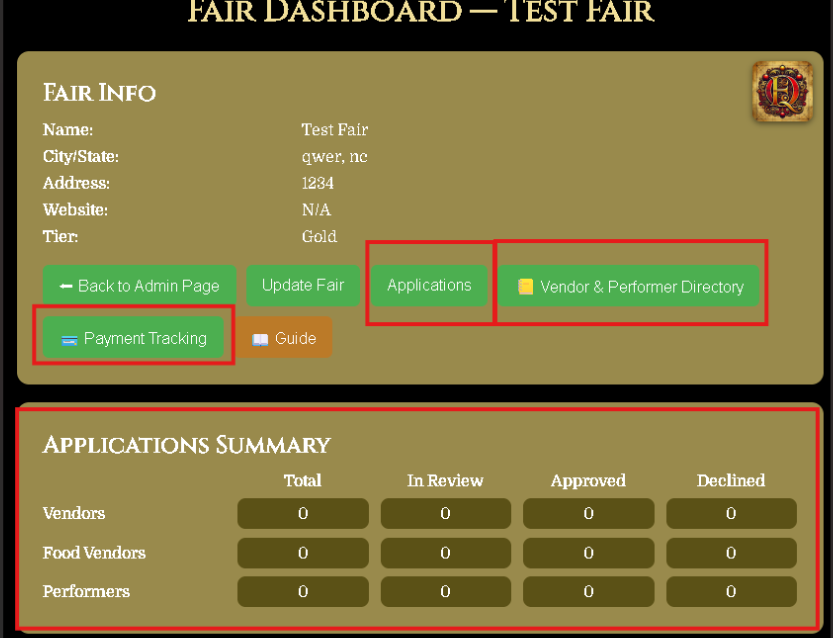
At the top of your dashboard you'll see your Fair Info card. This shows your fair's name, city and state, address, website, and your current plan level. Make sure this information is always up to date — this is what vendors, performers, and visitors see.
Back to Admin Page
Click Back to Admin Page to return to your list of fairs. If you manage more than one fair, this is how you switch between them.
Update Fair
Click Update Fair to edit your fair's information — name, address, dates, hours, description, image, and contacts. Keep this up to date so vendors, performers, and visitors always have accurate information.
Your Advanced Management Tools
The following tools give you full control over your fair's vendors, performers, applications, and payments. Each one is covered in its own detailed guide.
Applications
Click Applications to review and manage all vendor and performer applications for your fair. You can approve or decline submissions, review contracts, and manage your application forms from here.
📋 Go to Applications GuideVendor & Performer Directory
Click Vendor & Performer Directory to view and manage everyone who has been approved to participate in your fair. You can track invite status, years at fair, new vs returning status, and add notes for each participant.
📒 Go to Directory GuidePayment Tracking
Click Payment Tracking to manage booth fee payments for your vendors and food vendors, and track performer fees. You can search by email, mark payments as received, and keep notes for each transaction.
💳 Go to Payment GuideApplications Summary
Below the Fair Info card you'll see the Applications Summary table. This gives you a quick overview of all your applications broken down by type — Vendors, Food Vendors, and Performers — with counts for Total, In Review, Approved, and Declined.
Silver Plan Features
Silver plan features are currently in development. Check back soon for updates on what's coming for Silver plan fair owners.